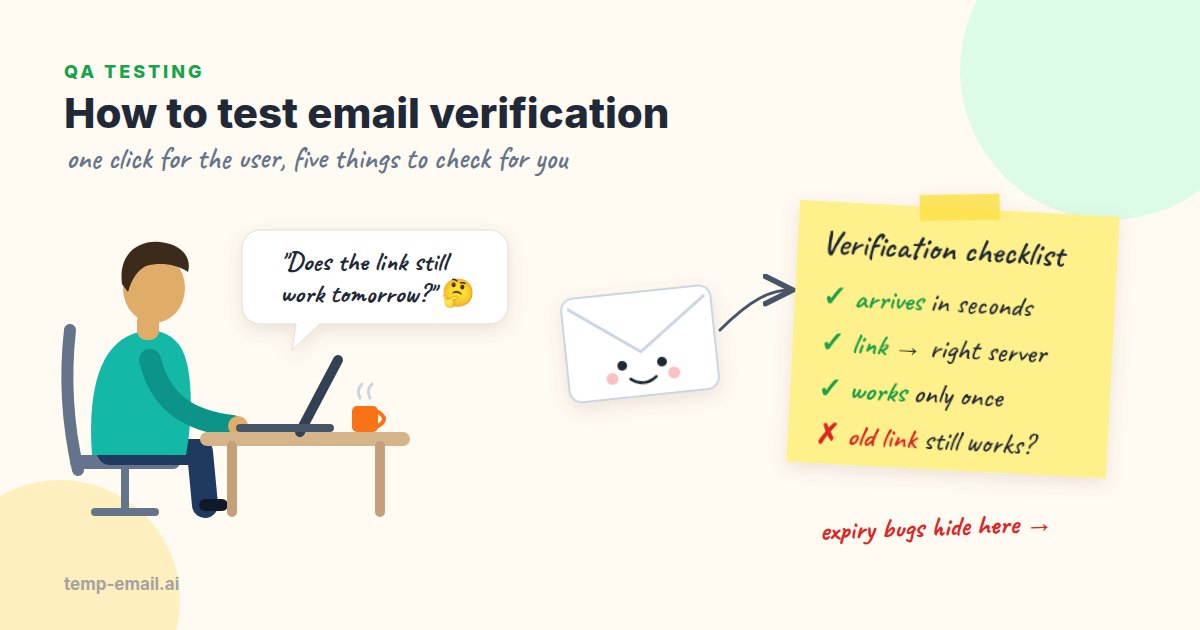
Say your team is launching a bookshop app. The sign-up form works, the "Confirm your email" message goes out, a developer clicks the link on their laptop and sees "Welcome!". Ticket closed. Two weeks later, support finds that staging emails link to production, a link from last month still works, and anyone who presses "Resend" three times gets three valid links.
None of that shows up in a one-click happy path. This guide is the checklist we wish every team had: what to test in a verification flow, how to walk through it by hand with a disposable inbox, and how to turn the important cases into automated tests that run on every build against a local mail catcher.
What a verification flow does under the hood
Verification is five small steps, and each one can break on its own:
- Your server creates a random token, ties it to the new user and stores it (ideally hashed) with an expiry time.
- It builds an email with a link such as
https://app.example.com/verify?token=…and hands it to your email provider. - The provider delivers it, sometimes after rewriting the links for click tracking.
- The user clicks. Your server looks up the token, checks that it is unexpired and unused, and marks the account as verified.
- The token is spent, and the user lands somewhere sensible: signed in, or on a login page with a success message.
If you are building this from scratch, our guide to building an email verification system covers the server side. Here we stay on the testing side. Assume the code exists, and your job is to find where it breaks.
What to test
The token
Read the link before you click it. The token should be long and random: at least 128 bits of randomness, which is 22 or more characters in base64url. If the link looks like verify?id=1042 or carries the email address in base64, stop and file a bug. Anyone could work out the next one.
- Sign up two users a few seconds apart and compare their tokens. You should see no shared pattern.
- Change one character of the token and open the link. Expect a clear "This link is invalid" page, not a 500 error or a stack trace.
- Remove the token completely (
/verifyor/verify?token=). Same expectation. - Check where the token ends up. It should not appear in server logs, analytics page views, or the
Refererheader sent to third-party scripts on the landing page. A Referrer-Policy ofno-referreron that page takes care of the last one.
Expiry
Pick a lifetime and write it down. 24 hours is common for sign-up links; some apps allow a few days. Then test both sides of the line: a link used just inside the window works, and one used just after it shows a friendly "This link has expired" page with a button to send a new one.
Nobody wants to wait a day for a test result. Two common tricks: make the lifetime configurable (for example VERIFY_TOKEN_TTL=2m on staging), or move the token's created_at back in the test database before clicking. Either way, test close to the boundary, not just "much later". Off-by-one bugs with time zones love to hide there.
Single use
Click the link, then click it again. The second visit should not crash, should not verify anything twice, and above all should not sign a new session in for whoever holds the link. Verification links get forwarded, pasted into support tickets and saved in browser history. A message like "Your email is already confirmed, please log in" is perfectly fine.
Resend
- Request a resend. A second email should arrive within a minute, carrying a new token.
- Decide what happens to the first link. The safest rule is "newest link wins": older tokens stop working once a new one is issued. Whatever rule you pick, test it.
- Press "Resend" ten times in a row. You should see a rate limit and a polite message, not ten emails. Your email bill and your sender reputation will thank you.
- Ask for a resend on an address that is already verified. It should not send another verification email.
Link domain and environment
This is the bug that bites most teams at least once. The link is built from a config value such as APP_URL, or worse, from the incoming request's Host header. Get it wrong and staging emails link to production, a developer's emails link to http://localhost:4200, or the link uses http:// where it should use https://.
- Check the host of every link in the email against the environment you are testing.
- Check that the scheme is
https. - If your email provider has click tracking on, links point at its tracking domain first. Many teams turn click tracking off for verification and password emails, so users see your real domain and the token doesn't pass through a third party.
- Follow the link to the end. After any redirects, you should still be on the same environment.
Account state around verification
- What can an unverified user do? If the rule is "can log in but can't place an order", test both halves.
- Sign up as
Reader@Example.com, then try again asreader@example.com. Most apps should treat these as the same person. - Sign up twice with the same address before verifying. You should end up with one account, not two.
- Change the email address in settings after verifying. The new address needs its own verification, and the "verified" flag should not carry over from the old one.
A manual walkthrough with a disposable inbox
For each test user you need an address your app has never seen, and you need to see exactly what arrives. Your work inbox fails at both: you are already in the database, and after twenty runs every "Confirm your email" message looks the same. A disposable inbox for testing solves both. Here is a ten-minute pass with temp-email.ai against a staging build:
- Open temp-email.ai. You get a random address such as
calmlake3315abe2@snapmailnow.comstraight away, with no sign-up. Copy it. - Sign up on staging with that address and note the time.
- Watch the inbox tab. Mail appears without a refresh, usually within seconds. The very first email from a brand-new sender can take up to a minute. If nothing shows up after two minutes, check your email provider's logs before blaming the code.
- Read the email as a user would. The HTML renders as it would in a mail app, so check the subject, sender name, button text, and that the plain-text link under the button matches the button.
- Hover over the button (or long-press on a phone) and read the link: right host,
https, a long random token. - Click it. Check that you land on the right page, in the right state.
- Go back and click it again. Expect the "already confirmed" or "invalid link" page, and no new session.
- For the resend rule, use a second test user: open a new tab or private window to get a fresh inbox, sign up, request a resend, and check that only the newest link works.
One tab per test user keeps things tidy, because each tab or private window gets its own inbox. If you regularly juggle several test users, our guide on multi-user sign-up testing has more tricks.
Automating it with pytest and Mailpit
Manual passes find the odd stuff. Automated tests make sure it stays fixed. For those we don't send through your real email provider at all. In the test environment, the app sends to Mailpit, a small open-source mail catcher. It accepts every email on SMTP port 1025, keeps it, and shows it in a web UI and a REST API on port 8025. Nothing leaves the machine, and mail shows up in milliseconds.
# Start Mailpit (web UI and API: http://localhost:8025)
docker run -d --name mailpit -p 1025:1025 -p 8025:8025 axllent/mailpit

# Point the app under test at it (use your app's own setting names)
export SMTP_HOST=localhost SMTP_PORT=1025 APP_URL=http://localhost:8000
Each test makes up its own address, such as reader-6f1c…@example.test, with a random UUID in it. Two tests never share an address, so they never read each other's mail, even when they run in parallel. The .test top-level domain is reserved for testing by RFC 2606, so if a config slip ever points the suite at a real provider, nobody gets your test mail.
The helper below uses two calls from the Mailpit API: GET /api/v1/search finds messages with a query such as to:"…" subject:"…" (newest first, not case sensitive), and GET /api/v1/message/{ID} returns one message with its HTML and Text bodies.
# mailpit.py: small helpers around Mailpit's REST API
import html
import re
import time
import uuid

import requests

MAILPIT = "http://localhost:8025"
LINK_RE = re.compile(r"https?://[^\s\"'<>]+")


def new_address(prefix: str = "reader") -> str:
    return f"{prefix}-{uuid.uuid4()}@example.test"


def wait_for_email(to: str, subject: str, count: int = 1,
                   timeout: float = 10) -> dict:
    """Wait until `count` matching emails exist, then return the newest."""
    query = f'to:"{to}" subject:"{subject}"'
    deadline = time.monotonic() + timeout
    while time.monotonic() < deadline:
        r = requests.get(f"{MAILPIT}/api/v1/search",
                         params={"query": query}, timeout=5)
        r.raise_for_status()
        found = r.json()["messages"]  # newest first
        if len(found) >= count:
            msg = requests.get(f"{MAILPIT}/api/v1/message/{found[0]['ID']}",
                               timeout=5)
            msg.raise_for_status()
            return msg.json()
        time.sleep(0.25)
    raise TimeoutError(f"expected {count} '{subject}' email(s) for {to}")


def extract_link(mail: dict, path: str) -> str:
    for url in LINK_RE.findall(mail["HTML"] or mail["Text"]):
        if path in url:
            return html.unescape(url)
    raise AssertionError(f"no link containing {path!r} in {mail['Subject']!r}")
A few details are easy to miss. HTML is an empty string for text-only emails, so the helper falls back to Text. Links inside HTML write & instead of & in query strings, which is why each URL goes through html.unescape. Mailpit's message IDs are random strings, not counters, so "wait for the next email" becomes count=2: wait until there are two matching emails, then take the newest. And a 10-second timeout is generous. If mail hasn't reached a local catcher by then, the app never sent it.
# test_verification.py
import os

import requests

from mailpit import extract_link, new_address, wait_for_email

APP = os.environ.get("APP_URL", "http://localhost:8000")


def sign_up(address: str) -> None:
    r = requests.post(f"{APP}/api/signup",
                      json={"email": address, "password": "c0rrect-Horse-battery"},
                      timeout=15)
    assert r.status_code == 201, r.text


def test_link_points_here_and_works_only_once():
    address = new_address()
    sign_up(address)

    mail = wait_for_email(address, "confirm your email")
    link = extract_link(mail, "/verify")
    assert link.startswith(f"{APP}/verify?token="), link

    first = requests.get(link, timeout=15)
    assert first.status_code == 200
    assert "email confirmed" in first.text.lower()

    stranger = requests.Session()  # someone who found the link later
    second = stranger.get(link, timeout=15)
    assert second.status_code in (400, 410)  # match how your app reports it
    assert not stranger.cookies.get("session_id")  # no login from a spent link
Your app's sign-up endpoint, status codes and cookie name will differ, so swap in whatever your front end actually uses. The shape stays the same: a new address, trigger the email, wait for it, pull out the link, then assert on what the link does.
Testing the resend rule
def test_resend_makes_the_old_link_useless():
    address = new_address()
    sign_up(address)
    first = wait_for_email(address, "confirm your email")
    old_link = extract_link(first, "/verify")

    r = requests.post(f"{APP}/api/verify/resend", json={"email": address}, timeout=15)
    assert r.status_code == 202

    second = wait_for_email(address, "confirm your email", count=2)
    new_link = extract_link(second, "/verify")
    assert new_link != old_link

    assert requests.get(old_link, timeout=15).status_code in (400, 410)
    assert requests.get(new_link, timeout=15).status_code == 200
Prefer to test through a real browser? The same steps work there too, and our Playwright email testing guide walks through the full browser version with Mailpit, including parallel workers and a CI setup.
What Mailpit can't tell you
Mailpit proves that your app builds the right email with the right link and sends it. It can't prove that the email gets delivered. Nothing in the test run touches your real provider, your DNS records or anyone's spam filter. That is why the manual pass above still matters: before a release, sign up on staging with a real inbox at temp-email.ai and watch the email arrive. If it takes ages, lands in spam or never shows up, check your provider's logs first, then your SPF, DKIM and DMARC records.
Common verification bugs: a quick checklist
- The link points to the wrong environment, or to
localhost. - The token never expires, or expires so fast that real users miss it.
- The token works more than once, or the second click signs someone in.
- Every resend creates another valid token, with no rate limit.
- Corporate link scanners spend the token before the person clicks.
- An invalid or expired token shows a 500 page instead of a way to get a new link.
- The email lands in spam because SPF, DKIM or DMARC isn't set up for the sending domain.
- Changing the email address keeps the "verified" flag from the old address.
- The token shows up in logs, analytics or a third-party
Refererheader.
Verification is one of the first things a new user sees, and one of the least tested. Spend half an hour on the cases above with a fresh inbox per user, automate the three that matter most (the link works, it works once, it points to the right place) against Mailpit, and you will catch most of these bugs before your users do. Happy testing!